All features

Feature

Profiles

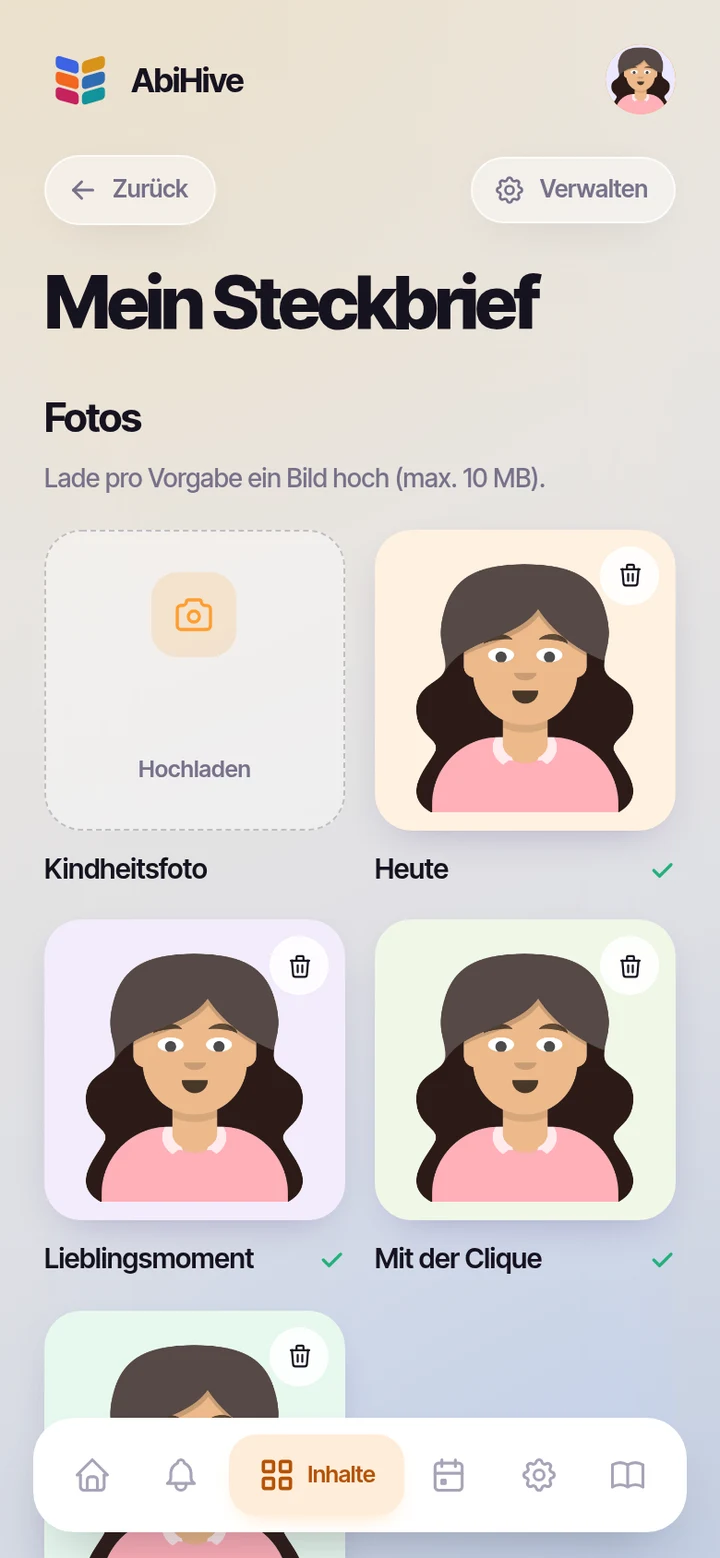
Everyone fills in their own profile — and that becomes their page in the book.

01

How everyone fills it in

The year group answers your questions straight in the browser — nickname, favourite saying, plans after school and more. Answers save themselves.

  • Free text answers and fixed questions, as long or short as they need to be.
  • Upload photos that later land on your own page in the book.
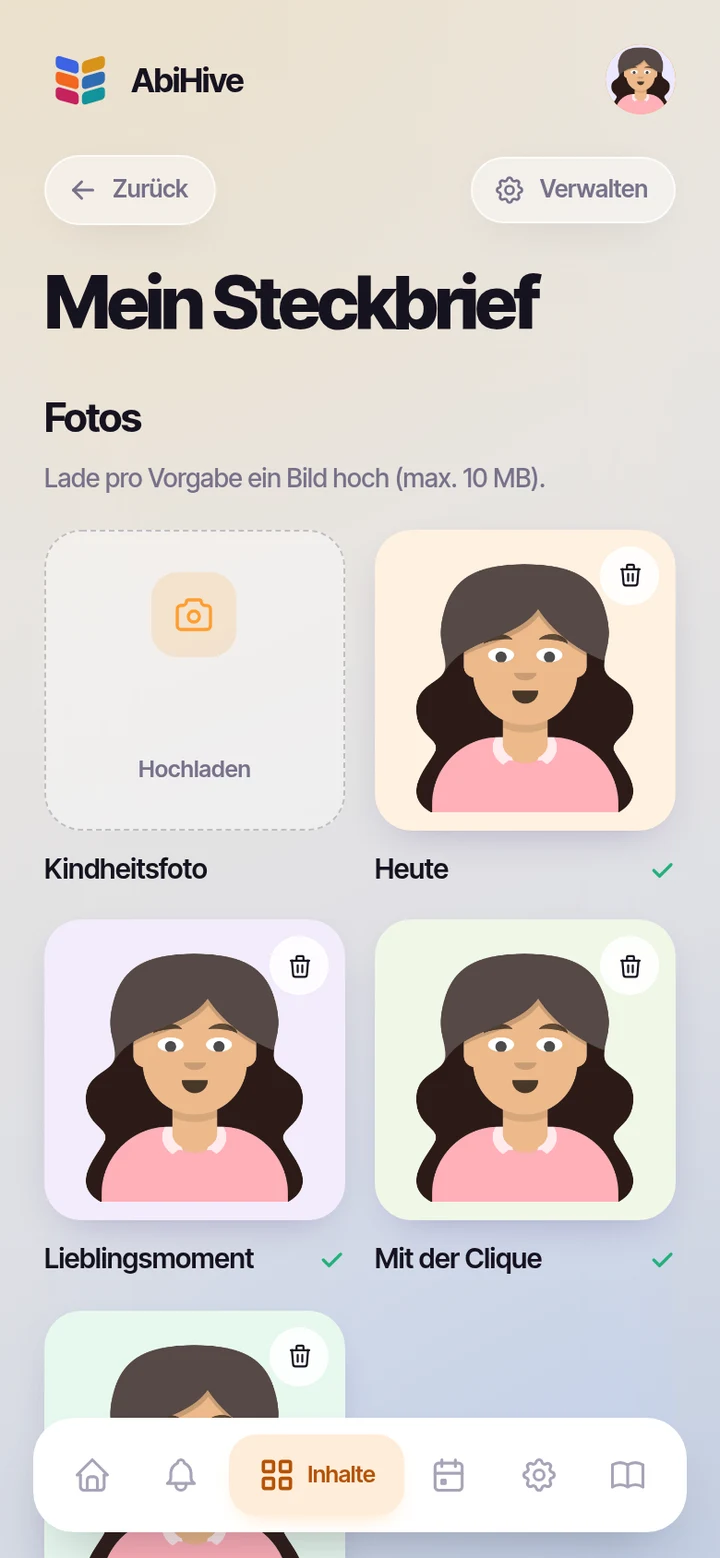
9:41 The profile page, where a student is answering her questions.
02

Managing the questions

The profile committee sets the questions and puts them in order — the same for everyone, so the pages come out consistent.

9:41 The admin view where admins create and order the profile questions.
03

And your voice with it

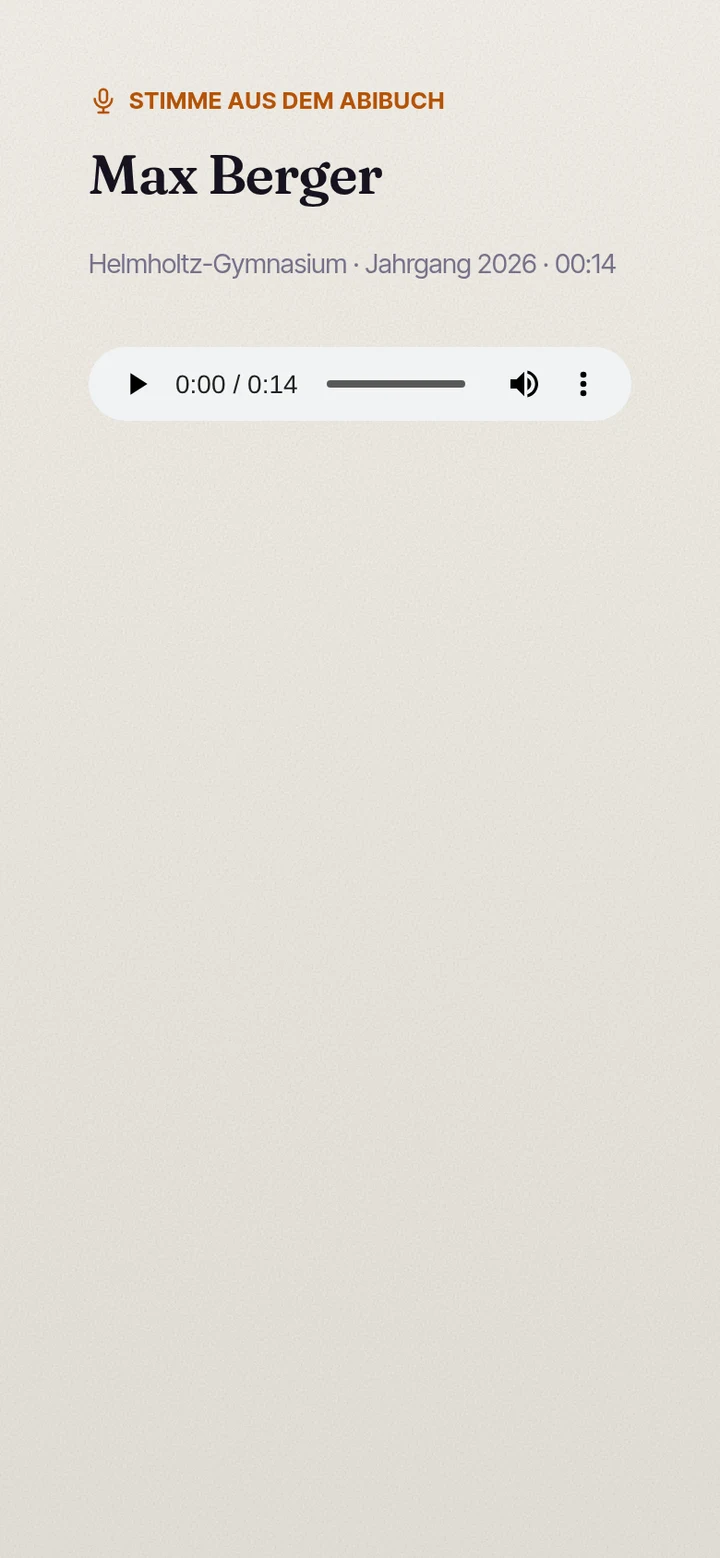
Anyone who wants to records themselves once — 60 seconds at most, straight in the browser. A small QR code then sits on their own page in the book: scan it and you hear the recording.

  • Voluntary, and the year group has to switch the feature on in the first place.
  • Anyone who records nothing gets no gap on their page either.
9:41 The page a scan opens: name, year group and the recording.

More on how the recording gets into the printed book: Voice messages →

Matching ideas from the blog: Steckbrief-Fragen-Ideen →

More features

Voice messages

Voice messages

Record once, and the printed book can be listened to.

01

A QR code on your own page

Anyone who leaves a recording gets a small QR code on their own profile page in the book. Scanning is enough — the recording plays in the browser, with no app and no account.

  • The QR code belongs to the person, not to the recording: re-record as often as you like, the printed code keeps working.
  • Record nothing and you get no gap — whatever stood there before stands there still.
02

Recording takes a minute

Recording happens straight in the browser, iPhone included: press, talk, listen back, keep it or throw it away. 60 seconds at most, one recording per person.

  • No app, and nothing to dig out of your voice-memo collection.
  • Listen before saving and record again, as often as you want.
9:41 A recording in progress on your own profile page, with level meter and clock.
03

The year group stays in charge

The feature only exists once you switch it on. After that each person decides for themselves whether to record anything, and moderators can hide a recording — without breaking the page in the book.

  • Off by default; the committee switches it on.
  • Hidden, deleted or switched off: the QR code simply leads nowhere.
9:41 The switch in the Steckbrief admin panel that turns voice messages on.

The recording is made on your own profile page: Profiles →

Quotes & likes

The year group's one-liners, collected and liked.

Everyone submits quotes and assigns them to the people they are about. The year group likes them, you sort by “most popular” and decide what goes in the book. Teacher quotes have their own area.

  • Likes and a leaderboard decide what makes the book.
  • Submit anonymously, if your year group allows it.
01

Collect & like

Everyone adds their favourite quotes and likes the others'. The lines that really belong in the book collect themselves.

  • Optionally assign a quote to a person.
  • Likes show which lines land with the year group.
9:41 The quotes page with collected lines and likes.
02

Keeping an overview

In the admin area you see every quote at a glance — ideal for making the selection for the book.

9:41 The admin view with the complete list of quotes.

Rankings

Who is always late?

One vote per question, changeable at any time — counting happens automatically. Alongside single categories there are couple votes for the year group's dream pair.

  • Single and couple categories.
  • The result is there instantly, without a tally sheet.
  • The result becomes the finished book page directly.
01

Voting

For each category everyone picks a classmate — one vote per question, changeable at any time.

  • Classic awards and couple categories (“best couple?”).
  • Counting happens automatically in the background.
9:41 The rankings page with award categories and your own vote.
02

Questions & results

Admins create the categories and see the counted results — ready for the podium page in the book.

9:41 The admin view with ranking questions and results.

Matching ideas from the blog: Ideen für Rankings & Awards →

Comments

What the year group writes about each other — with clear rules.

Everyone writes comments about others in the year group. You decide two things up front: whether they may be written anonymously, and whether the person may read what was written about them.

  • Anonymity can be switched on or off per year group.
  • For fairness, the people in charge always see who wrote what.
  • Hide instead of delete when something goes wrong.
01

Writing & reading

You pick someone from the year group and write them a few lines. Whether anonymous writing is allowed, and whether the person written about can read along, your year group decides once for everyone.

  • Optionally allow anonymous comments.
  • The person concerned may read them — or not.
9:41 The comments page with the choice of who is being written about.

Polls

When the deadline passes, the result is in.

For everything the year group decides together — motto, colour, cover. Ask the question, set the options, set a deadline: when the deadline passes, the result stands.

  • Single or multiple choice, with its own deadline per poll.
  • Runs in the feed so nobody misses it.
01

Taking part

Polls with one or several possible answers, optionally with an end date. Everyone sees where it stands in real time.

9:41 The polls page with running votes.
02

Managing polls

Whoever is in charge creates polls, edits the questions and options of a running vote and sets the end date.

9:41 The “manage polls” admin view.

Class motto

The year group's first decision.

The year group's first decision, and usually the loudest. Suggestions come from everyone, you vote once — after that the motto runs through the book, the hoodies and the banner.

  • Suggestions from the year group or from the idea library.
  • A vote with a visible running tally.
  • Decided early, because everything else builds on it.
01

Suggest & vote

Anyone can suggest a motto and everyone has one vote. If you're out of ideas, take one from the library as a starting point.

9:41 The motto page with suggestions and the running result.

Matching ideas from the blog: 100 Abimotto-Ideen →

Gallery

Photos from the whole year group — at print resolution.

Albums for the class trip, motto week, prom. Important for the book: the uploaded original stays untouched, only the preview is scaled down. What you upload goes to print at full resolution.

  • Originals untouched, previews kept separate.
  • Whole albums become finished collage pages.
01

Albums & photos

Anyone can create albums and upload photos — from the trip to motto week. The pictures are then ready for the book.

  • As many albums as you like, filled together.
  • Uploaders and admins can tidy up.
9:41 A photo album “trip & motto week” with uploaded pictures.

Apparel

Hoodies and shirts, including size collection.

You set up garments, colours and sizes — the year group picks once, and you have the order list instead of reconstructing it from the chat.

  • Colours and sizes per garment.
  • Each person chooses for themselves, exactly once.
  • A list you can order from.
01

Choosing

The year group picks the garment, the colour and the size — with their own name printed on it if they want.

9:41 The merch page with somebody choosing their own hoodie.
02

Order overview

Whoever is in charge maintains the catalogue and gets a finished overview: how often each size and colour is needed.

9:41 The admin view with the aggregated order overview.

Teacher awards

The best teacher quotes — submitted, reviewed, released.

This is where teacher quotes belong: submitted with the situation attached (“in maths class …”) and only visible to the year group after approval. Plus awards where the year group picks one teacher per category.

  • Every quote comes with the situation it was said in.
  • Approval before anything becomes visible.
  • You create the award categories yourselves.
  • Quotes and awards run separately, in the same area.
01

Submit lines, hand out awards

Every quote comes with the situation it happened in and only becomes visible once approved — that keeps the tone in check. In parallel the year group picks one teacher per award category.

  • An approval step for every quote.
  • Create award categories freely.
9:41 The teachers page with awards and submitted quotes.

Teacher profiles

Teachers fill in their own page.

No copying answers out of the staff room, no notes in a pigeonhole: you set the questions and send every teacher a personal link. They answer one question per screen, see the finished book page at the end, and release it themselves.

  • Create and order questions freely, the same for everyone.
  • Photos land straight on that person's page in the book.
  • How many photo slots there are is up to the committee.
  • In the admin area you see by name who is still outstanding.
01

One link is enough

The teacher gets a link from you — by mail, in the staff room, however you normally talk to them. One click and they are in: no registration, no password, nothing to install.

  • The link remembers which question they were on.
  • Sent to the wrong address? Renew it — the old one dies instantly, what was written stays.
9:41 The welcome screen a teacher sees when the link opens.
02

One question at a time

Not a long form to close again: one question per screen, set large, with a progress bar. Every answer saves as they move on, and "skip" sits right next to it as an equal option.

  • A question list of its own for teachers — not the one from your own profiles.
  • Stopping halfway and picking it up later costs nothing.
9:41 A single question with its answer field, progress and skip option.
03

See it first, then release it

At the end the finished book page is on screen — exactly what will be printed. Only then does the teacher release it. You cannot do that for them, and they can change or withdraw it any time through the same link.

  • Releasing is the consent — before that, nothing is in the book.
  • Withdrawing and deleting work after your deadline too.
9:41 The preview of the book page with the release button below it.
04

You see the state, not the texts

The admin area shows who has not started and who has released — what you need in order to chase people. The answers themselves you deliberately only look at when you check them for the book.

  • Status per teacher, copy, renew or block the link.
  • Download as CSV — including the ones still missing.
The admin view with the teacher list, their status and the link actions.

Confession box

Posted anonymously, released by the committee.

The box every yearbook has, without the slip of paper in the classroom. Posting is anonymous, moderating happens without names, and nothing reaches the wall before somebody has released it. Off by default: a year group opts into a rubric like this.

  • Released confessions are numbered on the wall and printed in that same order.
  • Moderators read without names.
  • You set how much each person may post.
01

Posting

One field, 280 characters, send. Above the field, before anyone types, it says what happens to their name: it is stored sealed, and the committee does not see it.

  • Names of cohort members and teachers are caught on submit and refused, while the author is still there to rewrite.
  • Withdrawing works in any state, released ones included.
9:41 The confession box page with the input field, character count and the note about the sealed author.
02

Releasing

The queue is the work in this module, and it deliberately carries no names. Releasing assigns the number the confession keeps on the wall and later in the book.

  • Three piles: pending, released, refused.
  • A released confession can be taken off the wall again; the number stays spent, so printed books remain correct.
  • Breaking the seal is for a school admin only, needs a reason, and stays on the row permanently.
9:41 The moderation queue: three piles and one confession with the release, refuse and break-seal buttons.
03

Sealed, not anonymous

That distinction carries the whole module. Whoever prints a yearbook answers for what is in it, so "we have no idea where that came from" is not an option. The author is therefore stored, and shown to nobody. The only route there runs through a school admin, costs a written reason, and leaves a trace everyone who may open the queue can see.

Playlist

One song per person.

The smallest module in the product, deliberately: paste a link, done. The order is the order they were added, and that is how the book prints them.

  • Title, artist and cover art are fetched by the server.
  • Every track only once.
01

Adding a song

Open the song in Spotify, hit share, paste the link. The server does the rest: title, artist and the cover art. Anyone who already has a song does not see the field at all.

  • One song per person, every track only once. Post a track somebody already took and you are told so, but not who took it.
  • Album and playlist links are refused: they would make a list that cannot be played.
9:41 The playlist page with the input field, the counter and the first songs with cover, title and who added them.
02

Getting it onto Spotify

There is deliberately no button that creates a Spotify playlist for you — that would need a signed-in account and its write scopes. Instead the committee gets every link in one block to copy, and Spotify turns that into a playlist in one step.

9:41 The playlist admin view with the three steps and the block of all song links.
03

The book prints the track list

Without cover art, and not to save money: the covers belong to the labels, and a yearbook is sold. In the app you see them; the printed page carries title, artist and the name beside them.

Course reports

One text per course, from the people who sat in it.

The classic that is always missing at the end. Every course gets its report — with a deadline instead of a shout, and straight into the right place in the book.

  • One entry per course.
  • Deadline and progress visible.
  • Flows into the book as a finished page.
01

Write & collect

Enter the course, a headline, the text — done. You see which courses have delivered and which are still missing.

9:41 The course reports page with the form and the reports already handed in.

Deadlines

Submission dates, motto week, prom in one place.

Deadlines and events together, with RSVPs. Reminders go out automatically before something is due — on the channel people actually read.

  • Deadlines with automatic reminders.
  • Events with accept and decline.
  • Push or e-mail.
01

Every date in view

“Hand in your profile”, “photo session”, “print deadline” — the year group sees what is coming up when, and gets reminded in time.

  • Upcoming deadlines also show up on the dashboard.
  • Reminders optionally by push or e-mail.
9:41 The dates page with upcoming deadlines.

Free pages

Pages you design entirely yourselves.

For everything that fits no grid: course collages, thank-yous, inside jokes. Build it in the editor or upload a finished PDF page — both end up in the same book.

  • Editor with text, images, shapes and backgrounds, or a finished PDF page.
  • Work on one page with several people.
01

Design it yourselves

In the editor you build the page with text, images, shapes and backgrounds — or you upload a finished PDF page. You can invite co-editors.

9:41 A free page in the editor, with co-editors.

Book & printing

Book & printing

Everything flows together automatically into a print-ready PDF.

01

Pick a template & design

You build the pages from ready-made templates or your own design. Profiles, quotes and rankings fill themselves with what you collected.

The book editor with the template selection.
02

Export & print

At the end AbiHive produces the complete book as a print-ready PDF — ready for the printer.

The export step with the PDF export.

We show the whole editor step by step in the guide. To the guide →

Make your year group unforgettable.

Create your year group and switch on exactly the modules you need.

Create a year group for free →